If you’re not seeing the full value you hoped for, chances are you’re not leveraging all that our platform can do. Before you lose access to all the business growth opportunities that Semrush offers, we would love to show you the alternative options that might better benefit you:
- Request a demo, and see what Semrush can do for you.
- If you’re having a platform issue, please let us know.
- If you have unanswered questions, we can help.
How do I cancel a Toolkit subscription or trial?
To cancel a Semrush Toolkit subscription or trial, submit a request through the Cancellation Form. You must be logged in to the Semrush account associated with the subscription or trial when submitting the request.
Complete all questions in the Cancellation Form.
After submitting the form, you’ll receive a cancellation confirmation email with a confirmation link that is valid for 24 hours. You must click the link to finalize your cancellation request. If you do not confirm your cancellation within 24 hours, it will not be processed, and billing will continue.
If you don’t see the cancellation confirmation email in your inbox, check your spam or junk folder.
Once you confirm the cancellation, a case will be created for Semrush Customer Support. After your request is processed, you’ll receive an email confirming that the cancellation is complete.
You can access the Cancellation Form in either of these ways:
- Directly: Open the Cancellation Form while logged in to your Semrush account.
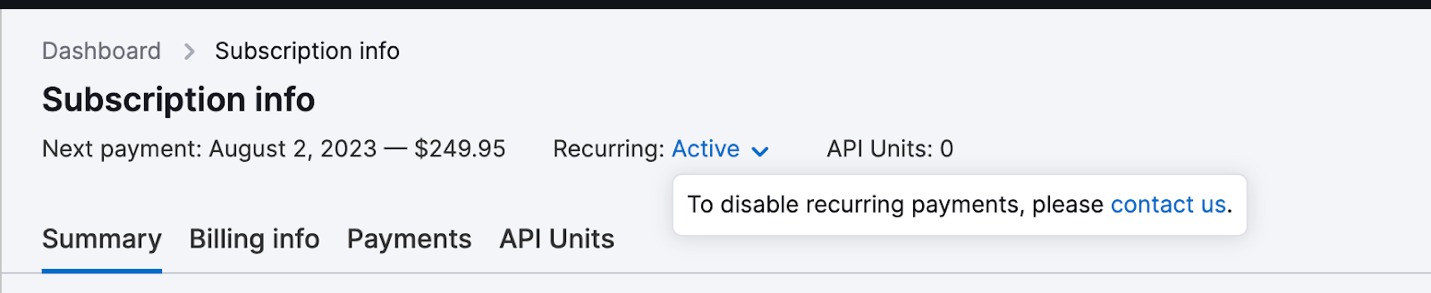
- From Subscription Info: Go to Subscription Info, find Recurring: Active, and follow the Contact us link to the Cancellation Form.
What should I select in the Cancellation Form?
The Cancellation Form lists the Toolkits included in your subscription, so you can select which you want to cancel or remove.
- To cancel a specific Toolkit: Select that Toolkit in the Cancellation Form. For example, to cancel Local Toolkit, select Local Toolkit; to remove Social Toolkit, select Social Toolkit.
- To cancel a legacy Pro, Guru, or Business subscription: Select SEO Toolkit.
- To cancel your entire paid subscription: Select All Semrush subscriptions. This cancels the entire paid subscription, including its add-ons and apps.
- To cancel multiple Toolkits without canceling your entire subscription: Submit a separate Cancellation Form for each Toolkit you want to cancel.
How do I cancel or remove an additional limit, add-on, or app?
The cancellation process depends on what you want to remove.
To cancel or remove an additional limit or add-on, submit a request through the Contact Form. Examples include additional users, keyword limits, PDF reports, API units, locations, and other additional limits or add-ons. In the Contact Form, specify which additional limit or add-on you want to cancel or remove. Semrush Customer Support will follow up on your request.
To cancel an app subscription or trial, go to the My Apps page, select Settings for the relevant app, and click Cancel trial or Cancel app subscription. For certain apps, you may be prompted to contact the App Center team at app-center@semrush.com instead.
Important: If you are planning to upgrade your plan and don't want to carry your current add-ons into the new plan, remove them before upgrading. Add-ons active at the time of your upgrade will carry over and be charged to the new billing cycle. To avoid unexpected charges, submit your add-on removal request via our support form first, wait for confirmation from our team, and then proceed with your plan upgrade.
How do I cancel if I can’t log into my account?
Please contact our Support team if you can’t log in to your account and need to cancel.
When contacting us via email, please use the email address associated with your account and include the following data:
- The email address associated with your paid account or account with a free trial.
- The last four digits of the credit card number you use for payments, and the type of credit card used (NB: Please keep your data secure and don’t provide us with the entire credit card number).
- The billing amount and date of your last payment.
This data will help us quickly identify your Semrush account and modify your subscription.
How can I check if my subscription has been canceled?
Check the Recurring status at the top of the Subscription Info page. If the subscription has been successfully canceled and automatic renewal is disabled, the status will show Recurring: Inactive.
If the status still shows Recurring: Active, your subscription is still set to renew. If you recently submitted a cancellation request, make sure you clicked the confirmation link in your cancellation confirmation email within 24 hours.

What happens if I cancel my subscription?
After canceling your subscription or trial, you will still be able to access Semrush on a free-level account.
All Website Monitoring folders created under a paid plan limit will be locked but still displayed in the Folders list on the home page. There is a 30-day grace period during which we will save your Website Monitoring data, provided the subscription is renewed within 30 days of cancellation.
If you don’t restore your paid SEO Toolkit subscription within 30 days, all your Website Monitoring data will be deleted in accordance with your free plan limits, which means only the data in your oldest folder will be retained.
How do I downgrade my account?
To downgrade to another pricing plan, simply contact Support, and we’ll take care of it. If you decide to re-upgrade, we’ll save your Website monitoring data for 30 days. If you downgrade to a free plan, we will keep your data for one month. After that, however, all your data will be deleted—except for the Website monitoring data in your oldest folder.
What happens if I don’t cancel my trial before it ends?
If you do not cancel your trial before it ends, the trial will automatically convert to a paid subscription, and you will be charged according to the subscription and billing terms you agreed to when starting the trial.
To avoid being charged, cancel your trial before the trial period ends. You can cancel a trial using the same cancellation process as a paid subscription.
Payments resulting from a trial of a standalone product that converts to a paid subscription are not eligible for the standard 7-day money-back guarantee. Semrush trials for standalone products are available for monthly subscriptions, while the money-back guarantee for initial subscription purchases applies only to subscriptions with a commitment of 12 months or longer.
How do refunds work and who is eligible?
Who is eligible for a refund?
Semrush offers a one-time, 7-day money-back guarantee for eligible purchases made directly on Semrush.com using a credit card.
You may be eligible if all of the following apply:
- You purchased directly from Semrush.com using a credit card.
- Your refund request is for either:
- your initial subscription or Toolkit purchase with a commitment of 12 months or longer, or
- your initial purchase of an add-on for an existing subscription.
- You submit a written refund request within 7 calendar days of the eligible purchase.
Month-to-month subscriptions are not eligible for the standard 7-day money-back guarantee.
If you have a signed agreement with Semrush, the standard online refund policy does not apply. Please refer to the cancellation and refund terms in your signed agreement.
What counts as an add-on
Toolkits are treated as standalone subscriptions, not add-ons. This includes Semrush One, SEO Toolkit, AI Visibility Toolkit, Content Toolkit, Local Toolkit, Traffic & Market Toolkit, and other Semrush Toolkits. Purchasing an additional Toolkit on top of an existing subscription does not make that Toolkit an add-on for refund purposes.
Add-ons are additional features, tools, or limits purchased on top of an existing subscription. Common examples of add-ons include additional users, keyword limits, PDF reports, API units, and apps, among others. An eligible initial add-on purchase may qualify for the 7-day money-back guarantee.
Are monthly subscriptions and subscription renewals refundable?
No. Month-to-month subscriptions and subscription renewal charges are not eligible for the standard 7-day money-back guarantee.
This is because the 7-day money-back guarantee is specifically limited to eligible initial purchases. It applies to an initial subscription or Toolkit purchase with a commitment of 12 months or longer, or an eligible initial add-on purchase. Recurring monthly payments and subsequent subscription renewals are therefore outside the scope of the guarantee.
Canceling during your current subscription term does not entitle you to a refund of prepaid or committed fees. To prevent future renewal charges, cancel your subscription before your next renewal.
Does canceling automatically request a refund?
No, canceling your subscription does not automatically result in a refund. To receive a refund, you must be eligible under our Cancellation and Refund Policy and explicitly request a refund.
If you want both to cancel your subscription and receive a refund, you must explicitly state that you are requesting a refund in the additional comments field of the Cancellation Form.
Canceling without asking for a refund does not automatically make the payment refundable.
How do I request a refund?
Submit your written refund request within the applicable 7-day period. The form you should use depends on whether you also want to cancel your subscription:
- To cancel your subscription and request a refund: Use the Cancellation Form. In the additional comments field, explicitly state that you are requesting a refund.
- To request a refund: Use the Contact Form. Contact Semrush Support using the email address associated with the Semrush account where the purchase was made, and include your account details so the purchase can be identified.
Semrush Support may ask you to provide additional information to verify your account or payment, such as transaction details, the billing date, or the last four digits of the card used.
For your security, never send your full credit card number.
When will I receive my refund?
If your refund request is approved, Semrush will process the refund within 30 calendar days after receiving your written request and any reasonably requested information.
The refund is sent through the same payment method used for the original purchase. Your bank or payment provider may charge fees, including currency-conversion fees; these charges are not covered by Semrush.
Where can I check my refund status?
You can check whether your refund has been processed in Subscription info → Payments.
Find the relevant payment and check the Status column. Once the refund has been processed, its status will appear as Refunded.

What if I canceled but was still charged?
If you believe you canceled before a charge but were billed anyway, contact our Support team using the email address associated with the Semrush account where the purchase was made, and provide:
- when you submitted your cancellation request, and
- when the charge occurred.
We'll review the cancellation and billing history and let you know whether the charge qualifies for a refund.
What if my situation doesn't match these conditions?
If you believe a charge was applied incorrectly or there was an issue with your cancellation or billing, contact our Support team so we can review your case.
For the complete terms and conditions governing refunds, see the Semrush Cancellation and Refund Policy.
How do I delete my account?
To delete your account, log in to your account first, then submit a request to our Support team through this link, as described in our Terms of Service (Section 7.4 — De-Registration).
What happens next?
- After submitting your request via this link, you’ll receive a confirmation email with an account removal activation link.
- Click the account removal activation link to confirm that you want to delete your account.
- This step helps us verify that the request was made by you.
- The activation link is valid for 72 hours.
When will my account be deleted?
Once you confirm the deletion request—and provided we have no other obligations to retain your data—your account will be permanently deleted within 30 days.
Didn’t receive the confirmation email?
If you don’t see the email in your inbox, please check your spam or junk folder.